Rare - Sea of Thieves Custom Seas UI
For Sea of Thieves, I worked as a UI engineer on Custom Seas, a new mode that lets players create their own games. It launched in Season 20 and is part of the live game today. I built the UI for the in-game command toolbar, the Free Camera (photo mode), and the full-screen spawn Command Menu.
The challenge
I had already shipped Guilds on the Sea of Thieves UI codebase, so I knew the framework and how to work with the engine team. Custom Seas was a step up from that both in scope and team size.
My focus was the full-screen spawn Command Menu and the in-game tools. The in-game tools included the command toolbar, Free Camera, and Quick Commands radial, all of which had to render over a live game world, so DOM updates and CSS had to stay performant.
The solution
I built all of this in the Sea of Thieves UI framework, which runs on Coherent Gameface, using TypeScript, CSS, and Sass. I worked with the engine team on the TypeScript data contracts between the UI and the engine, using and adjusting them as the feature needed. Like the rest of the UI, this was covered by Jasmine unit tests.
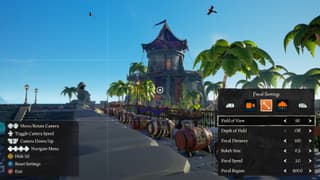
The Free Camera
I built the UI to work across standard, ultra-wide, and mixed aspect ratios, and used CSS animations for the panel transitions. I also collaborated with the Unreal Engine team to extend the TypeScript data contracts as camera controls evolved.
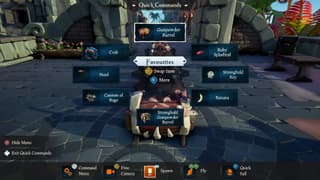
Quick Spawn Radial
The Quick Spawn radial was a complex interaction piece. It extends the game's existing radial menu, adding support for selecting, spawning, and assigning items and enemies.
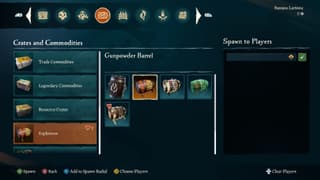
Command Menu
The command menu is the full-screen interface that lets players browse game items, and pick and spawn them for chosen players. Any item can also be assigned from here to the Quick Spawn radial for quick access during play.
Technical contributions
- In-game UI: Built the in-game command bar, Free Camera, and Quick Commands radial
- Spawn tooling: Built the Command Menu spawn screens, radial assignment and in-game spawning
- Data contracts: Used and adjusted TypeScript data contracts with the engine team
- Testing: Covered all UI logic and interactions with Jasmine unit tests
- Code quality: Championed the adoption of TypeScript strict null checking
- Visual styling: Implemented the Figma designs in CSS and Sass